
Setting#
Web server#
The DigiScan XD4100 has a builtin web server. The gauge measurements and parameters can be easily accessed from a PC, tablet, smartphone connected on the same Ethernet or Wifi network using a Webbrowser.
- url:
gauge ip address
xd4100-xxx/ (where xxx are the 3 last digits of the gauge serial number available on the label near the connectors).
- Change of parameters is possible only after login
Login: delta
password: xd
Main display#
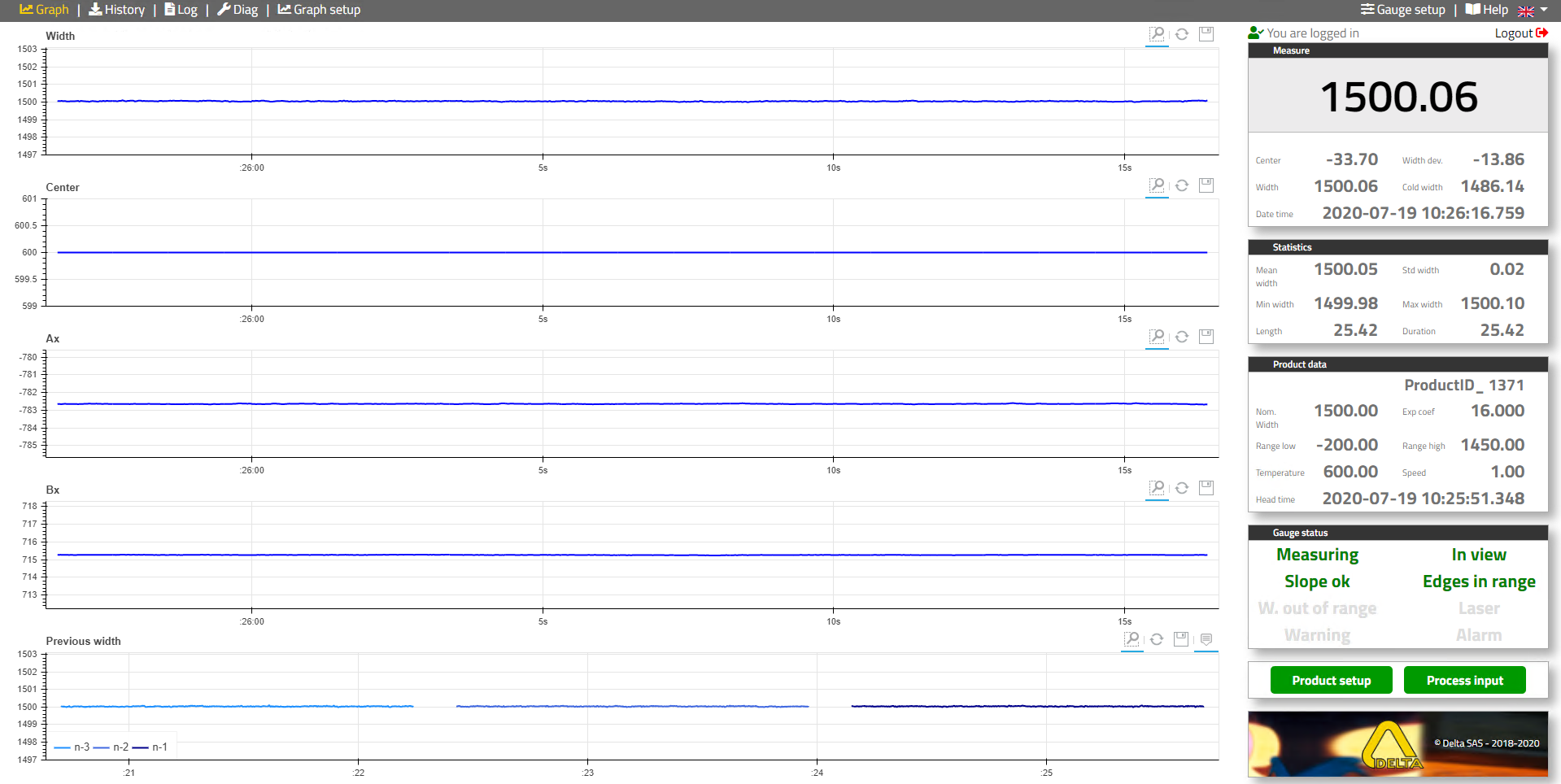
Tip: Use F11 for full-screen mode, Ctrl + Mouse scroll wheel for zoom - unzoom
- Graphs:
Display of 5 graphs. The user can select the following data: Width, Width deviation, Cold width (after contraction width at 20°C), Centre line, Edges position x and y, Strip speed, Strip temperature, Gauge internal temperature (Strip speed and temperature are optional and provided by user from a 4-20 mA input or from one of the network connection (Modbus TCP, OPCUA, field bus (option)).
Note: All measures are recorded and can be displayed using the same screen (History menu)
- Right column display:
Measure box: on top display the same data as selected for graph number 1.
Statistic box: provides information about the strip. The displayed statistics are reset when the gauge detects a new strip (head).
Product data box: display strip identification, nominal width, range low, range high, Expension coefficent. These information are transferred by the host to the gauge. If the strip cold width is not within the range limit the indicator “Width out of range” is activated.
Gauge status box: display the measurement status and the gauge status. Will be displayed in orange for warning.
Graph setup#
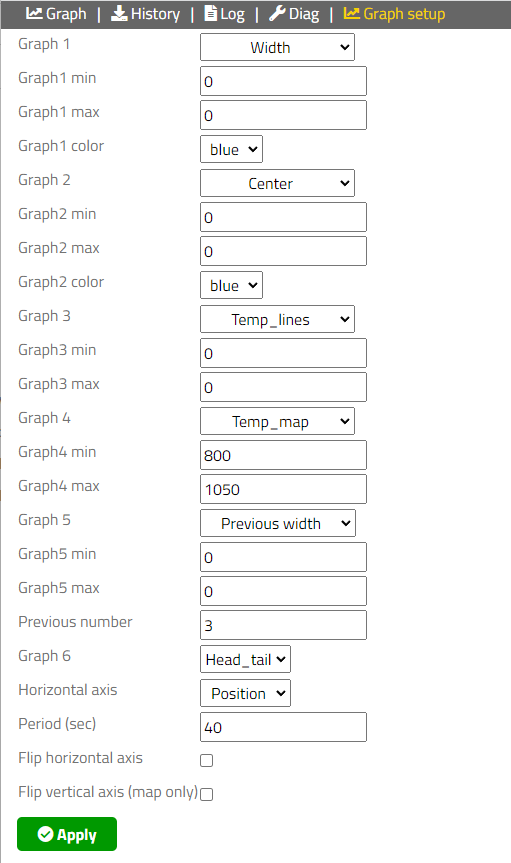
- Graph 1…5
Define the label for the different graphs
- Temperature min max
Define the temperature map scale (option required)
- Previous number
Define the number of previous product width displayed
- Remove head and tail(Previous)
Number of measurements removed at head/tail for previous display
- x axis
Selection of x axis time or length
- Flipped
Invert x axis
- Period
Number of second displayed
- Note
Graph setup parameters are saved in web client computer and are different for each gauge connected.
Some parameters depend on the gauge options.
Gauge setup#

- Verif Fixture
Positions of the slot of the verification fixture (value available on the label of the verification fixture) and in the project file.
- Camera Pixel
- Defines the range of valid pixels for right and left cameras.
Leading min, Leading max : leading edge (dark to light) min and max position in pixels
Falling min, Falling max : falling edge (light to dark) min and max position in pixels
Leading edges are scanned from “Leading min” to “Leading max”, and Falling edges are scanned from “Falling max” to “Falling min”.
- Factory setup for application working in “Light mode” (light emission from strip):
Leading min = 2
Leading max = 4094
Falling min = 2
Falling max = 4094
- Factory setup for application working in “Dark mode” (backlight):
Leading min = 2048
Leading max = 4094
Falling min = 2
Falling max = 2048
- Product Setup Input
Select the origin of the product setup data
- Apply new:
Immediate: the new product setup is applied immediately when received
Next_head: the new product setup is applied when a head is detected. When a new product setup is received the product ID is greyed and will be change to black when it is applied (detection of a head)
- Cold width compute:
Coefficient: a constant Coefficient of thermal expansion is applied
Grade_table: the Coefficient of thermal expansion is obtained from a Grade table and is depending of the product temperature
- Speed input
Set the origin of the speed
- Temperature input
Set the origin of the temperaure
- Register input
Set the origin of digital inputs
- Analog output setup
Set for the internal analogue outputs: the label, the range and default value
- Analog input setup
Set for the internal analogue inputs: the label, the range and default value
- Digital io setup
Set for the internal Inputs and Outputs labels
- Statistics
Set the number of measurement samples removed at head/tail for the evaluation of min, max, average, standard deviation
- Offset
Set the X and Y offsets to have centerline to 0 and Y position to 0. When “Invert X axis” is checked, all the X pixels postions are inverted.
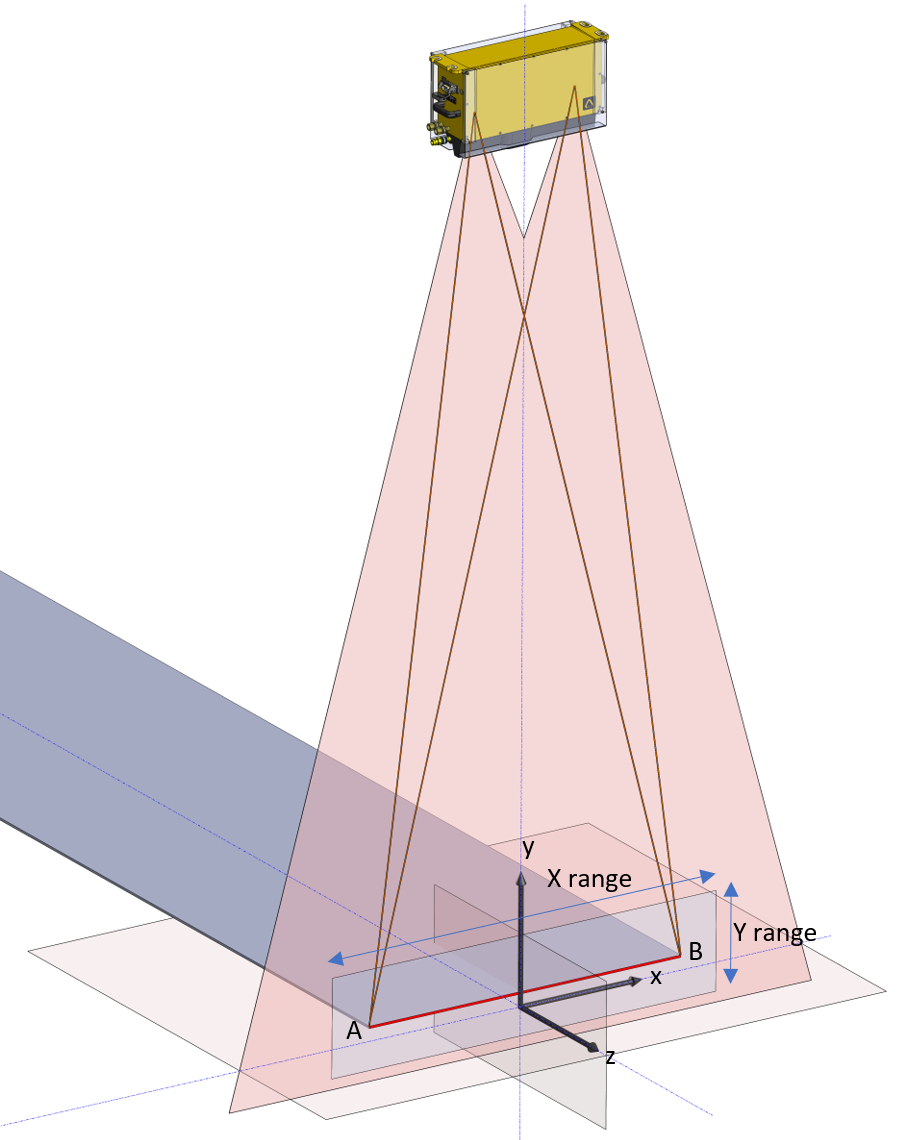
Standard coordinate |
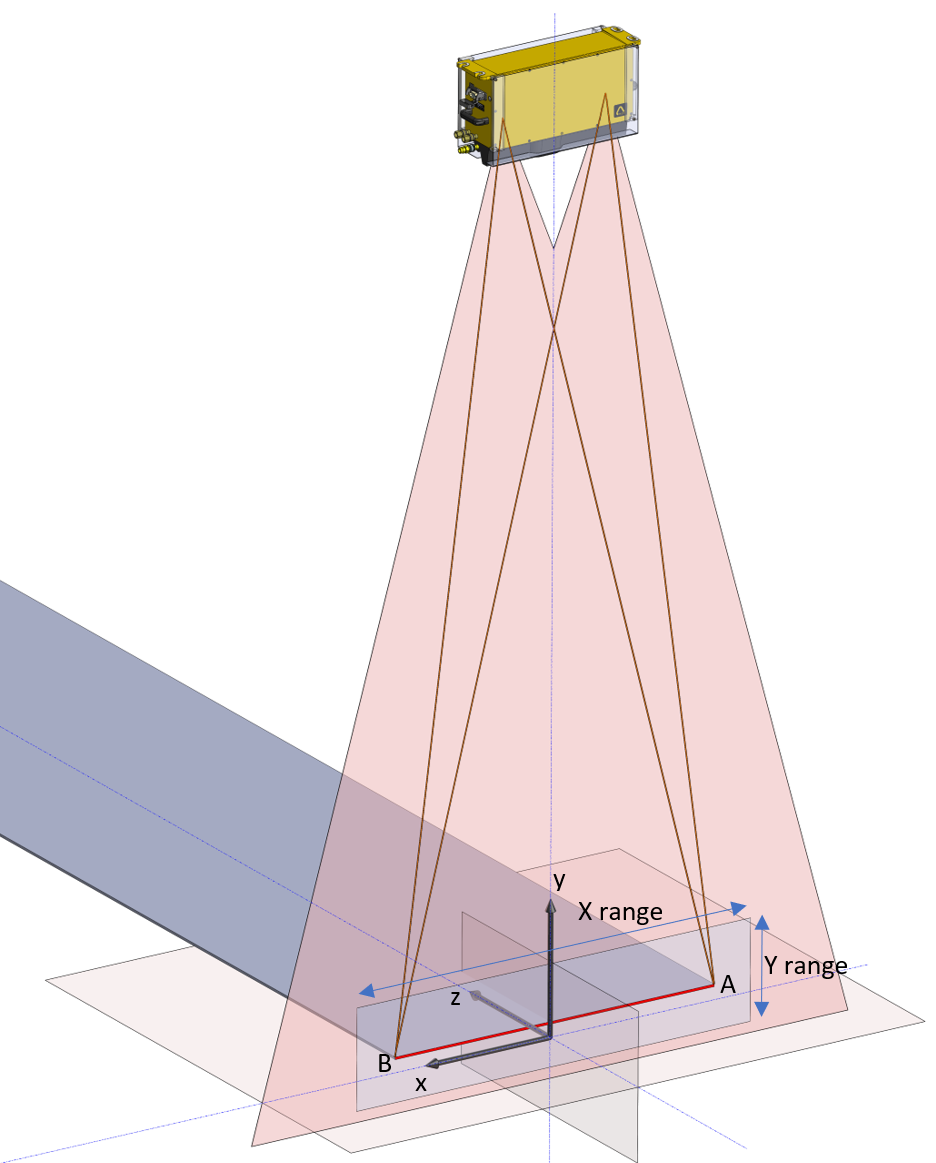
X axis inverted |
- Options
DigiScan XD4100, has different options such as Thermal Profile, Grade tables, External IO, Field Bus… or can be customized at customer request.
Plugin: Select the folder which contains the different configuration files related to the definition of the options. Refer to the project file for specific details.
Emissivity: Set the emissivity for Thermal Profile option.
- Note
Gauge parameters linked to the camera scans and edge determination are available in the diagnostic screen. For more information refer to the chapter: Diagnostic. The parameters available in this screen depend on the gauge options.